
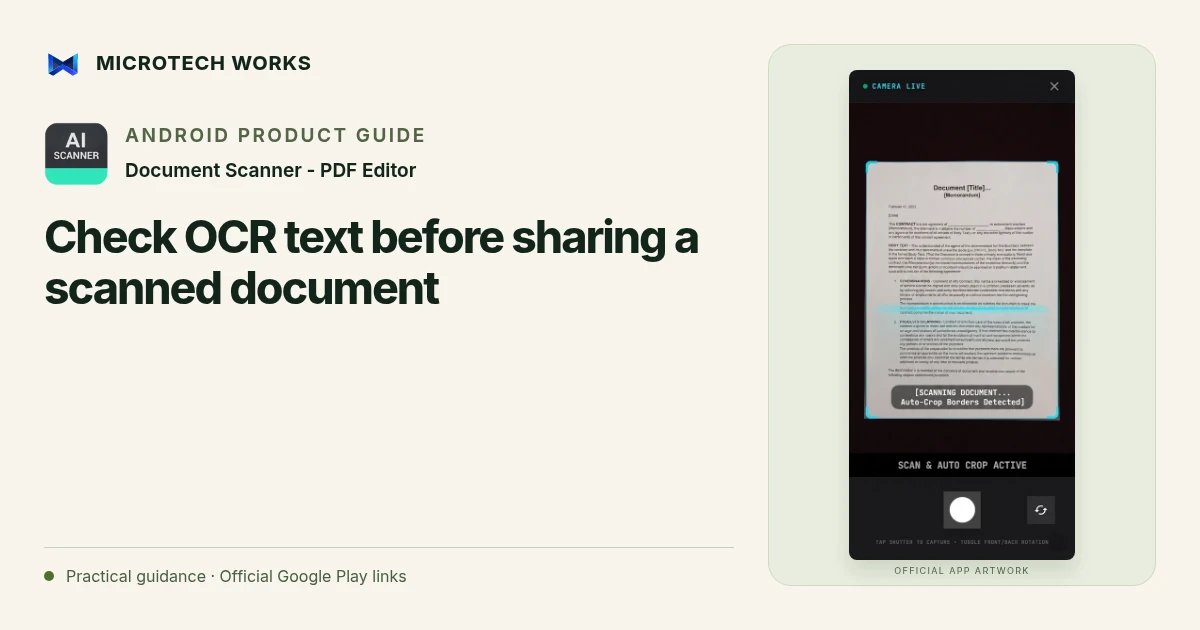
Text recognition can make a scan searchable and easier to reuse, but a plausible-looking word is not proof that it matches the paper. Document Scanner supports OCR, searchable PDFs, redaction and password protection. Treat those as separate steps in a document workflow rather than assuming that scanning alone completes the job.
Improve the source before running OCR
A sharp, complete page gives recognition a better starting point than a blurred or shadowed photograph. Check the crop and the orientation first. If a fold or reflection hides a character, recapture that area where possible. Repeatedly applying a stronger image filter can erase details instead of recovering them.
Verify the fields where a small error matters
Compare names, dates, account references, amounts and decimal points with the source image. A recognized zero can resemble a letter O; a missed minus sign can change a value. Use copied text only after checking it in context. OCR does not validate an invoice, diagnose a medical report or certify that a document is genuine.
Prepare the version you mean to share
Decide whether the recipient needs the complete document or a limited extract. If sensitive details should not be included, use the app’s appropriate redaction capability and inspect the exported result. Confirm that the hidden content is not still available as selectable text or another visible page in the final file. Do not assume that drawing a decorative box in a different app permanently removes underlying information.
Protect and deliver thoughtfully
Password protection can be useful when a document needs an additional access barrier. Choose a password the recipient can use, and communicate it through an appropriate separate channel. Check the actual file you attach, rather than relying on an editor preview or a similarly named earlier export.
The app can process documents locally and optionally back up the scan library to Google Drive. Local processing does not prevent someone who receives an exported file from copying it. Keep source material, edited exports and backups distinguishable so that the next share does not accidentally send an unredacted or outdated version.
Continue reading
For another part of this workflow, read Scan a readable multipage PDF on Android.
Published by Microtech Works, the developer of Document Scanner - PDF Editor. Product features were checked against the public listing on 31 October 2026. Screens and availability can change with updates.
Explore Document Scanner →Download Document Scanner →Official Google Play listing ↗Continue reading
01Scan a readable multipage PDF on Android02Add English captions to Android videos with PostStudio03Arrow Escape beginner guide: find the first clear path