
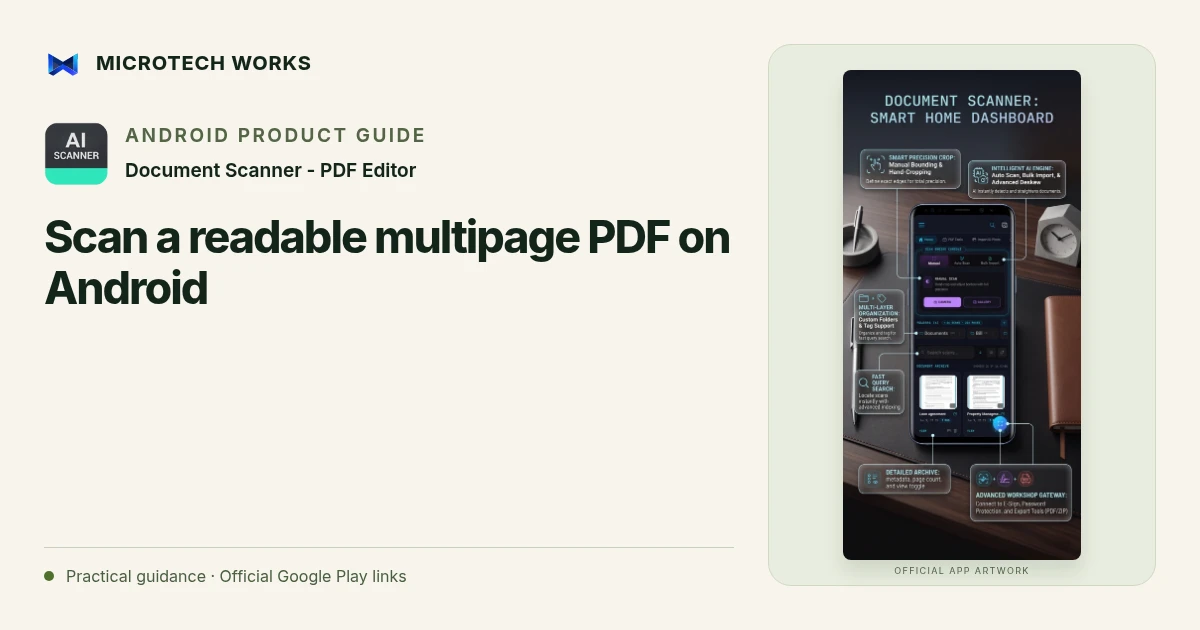
A useful scanned PDF starts with readable pages in the right order. Document Scanner - PDF Editor supports edge detection, perspective correction, filters and multi-page export. Those tools help prepare a document, but reviewing the result is still essential before you email a contract, submit a form or archive a receipt.
Capture complete pages in steady light
Place the document on a surface that makes its edges easy to distinguish. Avoid reflections over signatures, totals or small print. Check the corners before moving on to the next page; a crop can look neat while cutting off a page number or a line near the margin. For a bound book, keep the page as flat as practical without damaging it.
Correct the image before building the file
Use perspective correction for skew, then compare the available filters. A high-contrast black-and-white result can improve simple text but remove faint stamps or annotations. A colour or balanced version may preserve information the recipient needs. Choose for legibility and completeness rather than for the cleanest-looking thumbnail.
Arrange the pages as a document
Review the sequence, orientation and completeness before exporting. Remove accidental duplicates, rotate pages that face the wrong way and make sure attachments follow the document they belong to. A clear filename with a relevant date or reference can be more useful later than the scanner’s default name. Do not put sensitive identifiers into filenames that may be visible in shared folders.
Test the exported PDF
Open the saved file in a viewer and inspect a small-text area, the first page and the final page. Check that all expected pages are present and that the result fits the intended page size. If you compress the file, inspect it again; a smaller attachment is not useful if a reader can no longer distinguish the figures.
Keep the original paper when its legal or operational role requires it. A phone scan and a drawn signature do not automatically replace the original document or satisfy every submission rule. The app supports local document processing and optional backup to your Google Drive; sharing a file through another service introduces that service’s own handling and access controls.
Continue reading
For another part of this workflow, read Check OCR text before sharing a scanned document.
Published by Microtech Works, the developer of Document Scanner - PDF Editor. Product features were checked against the public listing on 31 October 2026. Screens and availability can change with updates.
Explore Document Scanner →Download Document Scanner →Official Google Play listing ↗Continue reading
01Check OCR text before sharing a scanned document02Add English captions to Android videos with PostStudio03Arrow Escape beginner guide: find the first clear path