
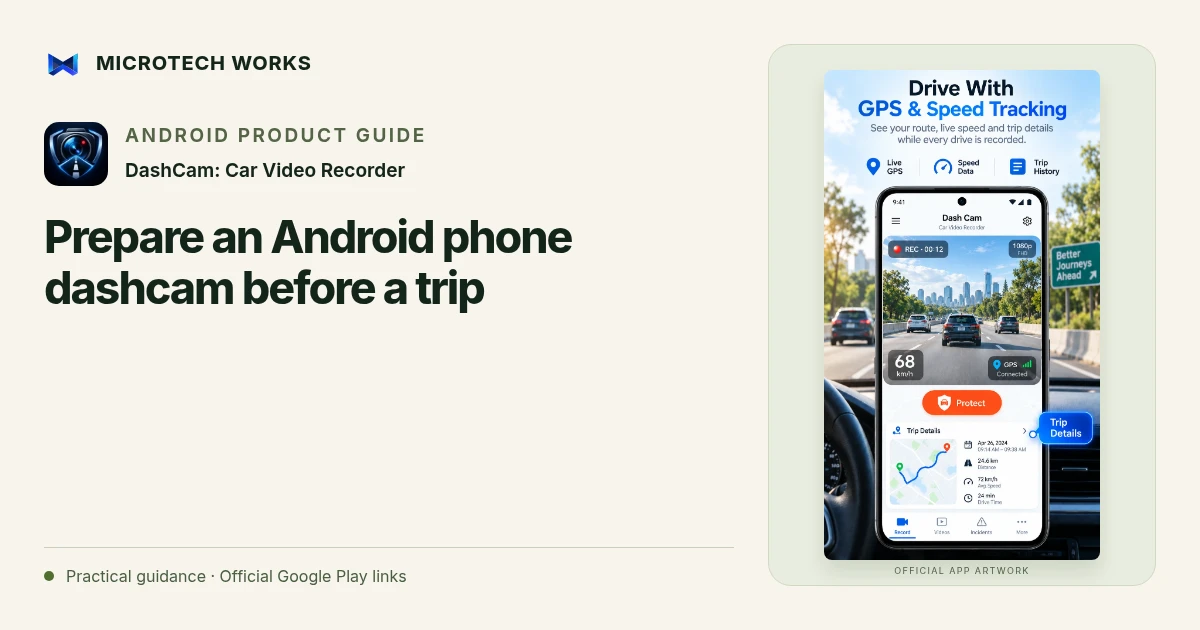
A phone dashcam is most useful when its setup is checked before the vehicle moves. DashCam offers recording, optional GPS information, loop management and supported background or screen-off use. Device limits still apply, so a short real-world test is more informative than assuming every Android phone behaves identically.
Make the view usable and safe
Position the phone in a suitable mount, clear of the driver’s sightlines and controls. Check the camera view while stationary. Reflections, a dirty lens and a mount that shifts can make a recording less useful even at a high resolution. Follow local rules for mounting, filming and audio recording; do not operate the app while driving.
Check permissions and optional information
Choose whether you need audio or GPS-related data and review the corresponding Android permissions. The listing describes optional location, speed, route and timestamp information associated with recordings. Those records depend on device conditions and are not certified measurements. Test whether the resulting playback contains what you expected before treating it as a reliable journey record.
Test the recording mode you intend to use
If you plan to use navigation or turn the screen off, make a short stationary test of that exact combination. Camera access and background behavior depend on Android and the device. Confirm that the recording continues and that the saved segment plays. The optional smart-start feature prompts you to confirm recording; it should not be mistaken for an unattended guarantee that every trip is captured.
Plan for heat, power and storage
Recording, GPS and navigation can create a demanding workload. Avoid exposing the phone to unnecessary heat, keep an appropriate power plan and check available storage. Thermal protection may reduce workload or stop recording on supported conditions. A visibly running session should still be reviewed when you are safely stopped.
At the end of the test, open the saved footage, listen if you enabled audio and confirm the correct camera was used. Decide how protected clips will be exported or backed up before a journey where you may need them. The goal is an understandable recording workflow, not an assumption that software can remove the physical and operating-system limits of a phone.
Continue reading
For another part of this workflow, read Manage dashcam loop storage and protected clips.
Published by Microtech Works, the developer of DashCam: Car Video Recorder. Product features were checked against the public listing on 31 October 2026. Screens and availability can change with updates.
Explore DashCam →Download DashCam →Official Google Play listing ↗Continue reading
01Manage dashcam loop storage and protected clips02Add English captions to Android videos with PostStudio03Arrow Escape beginner guide: find the first clear path